


August 22, 2026
Why Is My Laptop So Slow? 10 Common Reasons and How to Fix It
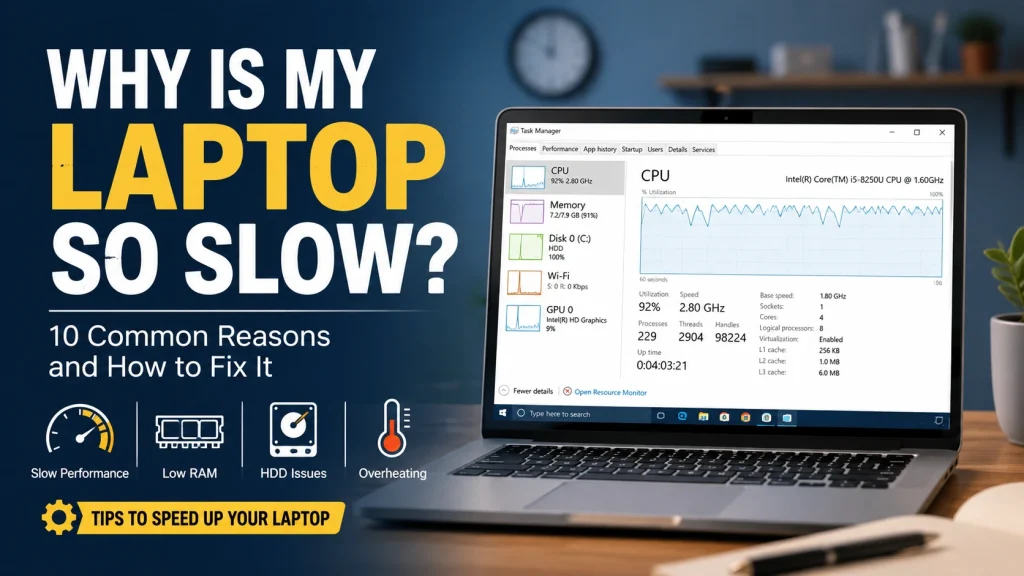
Why is my laptop so slow? If your laptop was much faster when you first bought it, but now opening Chrome takes longer, switching between applications feels sluggish, and even opening a folder takes a few seconds, you’re not alone.
That doesn’t automatically mean it’s time to buy a new laptop.
A slow laptop can be caused by something as simple as too many programs running in the background. In older machines, the storage drive, RAM, overheating, or aging hardware can also be responsible.
Let’s look at the most common reasons and what you can actually do about them.
Quick Answer: Why Is My Laptop So Slow?
The most common causes are:
Too many startup programs
Very little free storage
An old HDD
Insufficient RAM
Too many background applications
Malware or unwanted software
Overheating
Outdated Windows or drivers
Aging hardware
A failing hardware component
Before replacing the laptop, it is worth finding out which of these is actually causing the problem.
1. Too Many Programs Start When You Turn On the Laptop
Have you noticed that your laptop takes a long time to become usable after you switch it on?
One possible reason is the number of applications that start automatically with Windows.
Programs such as cloud storage tools, messaging apps, launchers and other utilities can start in the background even when you don’t need them immediately.
What can you do?
Open Task Manager → Startup Apps and look at the applications listed there.
If you don’t need a particular application to start every time Windows boots, you can disable it.
Don’t disable Windows components or anything you’re unsure about.
2. Your Storage Is Almost Full
A nearly full drive can make everyday computer use frustrating.
Check your main Windows drive and see how much free space is available. Old downloads, temporary files, unused applications and large media files can quietly consume a lot of space.
A quick cleanup may help if storage is the problem.
But if you’re constantly running out of space, cleaning files every few weeks isn’t really a solution. You may need a larger drive.
3. Your Laptop Uses an Old HDD
This is one of the biggest things to check on an older laptop.
Traditional HDDs use mechanical moving parts, while SSDs use flash storage. An SSD can make a noticeable difference to everyday tasks such as starting Windows, opening applications and accessing files.
So if your laptop is otherwise in decent condition but still uses an old HDD, an SSD upgrade may be worth considering.
It doesn’t magically make every component faster, but the difference in day-to-day responsiveness can be significant.
4. You Don’t Have Enough RAM
RAM becomes especially important when you’re doing several things at once.
For example, imagine having Chrome with 15 tabs open, a video call running, an Excel file open and several other applications working in the background.
If your laptop doesn’t have enough memory for that workload, things can start slowing down.
You may notice:
Applications taking longer to respond
Browser tabs reloading
Frequent freezing
Slow switching between applications
High memory usage in Task Manager
If your laptop supports a RAM upgrade, adding more memory could be a practical option.
5. Too Many Applications Are Running in the Background
Sometimes the application making your laptop slow isn’t the one you’re currently using.
Open Task Manager and check the CPU, Memory and Disk columns.
If one application is consistently using a large amount of system resources, find out what it is before closing or uninstalling it.
Some background processes are necessary. Others may simply be applications you forgot were running.
6. Malware or Unwanted Software Could Be the Problem
A sudden change in performance is worth investigating.
If you’ve also noticed unusual pop-ups, browser redirects, unknown applications or strange system behaviour, unwanted software could be involved.
Run a security scan using a trusted security solution.
Also be careful with websites offering “one-click PC speed boosters” or unknown cleaning tools. Installing more questionable software to fix a software problem can make things worse.
7. Your Laptop May Be Overheating
Does the laptop become very hot after you’ve been using it for a while?
Does the fan suddenly become loud when you’re doing something that normally isn’t demanding?
Heat can affect performance. A laptop may reduce its performance when internal temperatures become too high.
Dust around cooling vents, blocked airflow or problems with the cooling system can contribute to this.
If cleaning the external vents doesn’t solve the problem, the cooling system may need to be inspected.
8. Windows or Drivers Are Outdated
Software updates aren’t only about adding new features.
Windows updates and hardware-driver updates can include security fixes, compatibility improvements and other changes.
Check Windows Update and make sure your important drivers are from reliable sources.
Don’t download random drivers from websites that promise to make your laptop “10x faster.”
For more information, check Microsoft’s official guide to improving PC performance in Windows.
9. The Hardware Is Simply Getting Old
Sometimes there isn’t one dramatic problem.
The laptop may simply be reaching the limits of its original hardware.
A machine with an older processor, limited RAM and a mechanical HDD may struggle with modern websites and applications even after a complete software cleanup.
In that situation, an upgrade might extend its useful life. But if several components are outdated, spending heavily on upgrades may not be worthwhile.
10. There Could Be an Actual Hardware Problem
If your laptop has suddenly become extremely slow, freezes regularly, crashes or makes unusual sounds, don’t assume it’s just a Windows problem.
Storage failure, RAM problems, overheating and other hardware faults can cause performance issues.
If important files are stored on the laptop, back them up before attempting major repairs or drive-related troubleshooting.
If the drive has already failed and important files are inaccessible, hard disk data recovery may be necessary.
A proper diagnosis is better than replacing parts randomly.
What Should You Check First?
Before spending money on a new laptop, go through this simple checklist:
Restart the laptop.
Check how much storage space is available.
Review Startup Apps.
Check CPU, Memory and Disk usage in Task Manager.
Remove applications you no longer use.
Run a trusted security scan.
Check for Windows updates.
Make sure the cooling vents aren’t blocked.
Back up important files.
If the problem continues, get the hardware checked.
This can help you narrow down the problem instead of guessing.
For more practical tips on keeping your laptop in good condition, check out our laptop repair tips guide.
SSD or RAM: Which Upgrade Will Make Your Laptop Faster?
This depends on what is actually slowing your laptop down.
| Problem | Upgrade that may help |
| Slow Windows startup | SSD |
| Slow application loading | SSD |
| Old HDD | SSD |
| Too many applications causing high memory usage | RAM |
| Heavy multitasking | RAM |
| Overheating | Cooling/maintenance |
| Storage failure | New storage drive |
For example, replacing an HDD with an SSD won’t fix a laptop that is constantly running out of RAM. Similarly, adding RAM won’t solve a failing hard drive.
That’s why diagnosing the problem first matters.
When Should You Get Professional Laptop Repair?
Basic troubleshooting is useful, but there are situations where it’s better not to keep experimenting.
Consider getting professional help if:
The laptop freezes frequently.
It crashes or shuts down unexpectedly.
The storage drive appears to be failing.
The laptop gets unusually hot.
You hear unusual sounds from the drive or cooling system.
Performance suddenly became much worse.
You suspect a hardware problem.
You aren’t sure whether an upgrade or replacement makes sense.
A proper diagnosis can tell you whether the issue is software, hardware or simply an outdated configuration
If the problem continues, professional laptop repair services in Chennai can help identify whether the issue is related to hardware or software.
Should You Upgrade Your Laptop or Buy a New One?
There’s no single answer.
If you’re still asking, “Why is my laptop so slow?”, start by identifying whether the problem is related to storage, RAM, software or hardware.
If the laptop has a reasonably capable processor and the main problem is an old HDD, an SSD upgrade could make more sense than replacing the entire machine.
If it has limited RAM, adding memory may also extend its useful life.
But if the processor is very old and multiple components are already outdated or failing, putting more money into the laptop may not be the best decision.
The better approach is simple: find out what is actually wrong first, then compare the repair or upgrade cost with the cost of replacement.
Frequently Asked Questions
Why does my laptop become slow over time?
Accumulated applications, startup programs, low storage, software changes, overheating and aging hardware can all contribute to slower performance.
Can an SSD make an old laptop faster?
An SSD can significantly improve tasks such as Windows startup, application loading and file access, particularly when replacing an older HDD.
Is 8GB RAM enough?
It depends on how you use the laptop. Basic tasks may be fine, while heavier multitasking can benefit from additional memory.
Can overheating slow down a laptop?
Yes. Excessive heat can cause a laptop to reduce performance to protect its internal components.
Should I repair my old laptop or buy a new one?
Check the processor, RAM, storage and overall condition first. If the main problem can be solved with a reasonable upgrade, repairing the existing laptop may make sense.
How do I know whether my laptop needs an SSD or more RAM?
Check what is actually reaching its limit. High memory usage points toward RAM, while an old HDD and slow storage-related tasks point toward an SSD. A professional diagnosis can help if you’re unsure.
Need Help With a Slow Laptop?
If you’ve tried the basic fixes and your laptop is still slow, the problem may require a proper hardware or software diagnosis.
Instead of immediately replacing the laptop, find out what’s causing the slowdown first. Depending on the condition of the machine, a repair, maintenance service or SSD/RAM upgrade may be enough to bring it back to a much more usable state.
Wavexel provides laptop and computer support in Chennai, including computer repair services, maintenance and hardware upgrade services.
Post Tags :
Share :
About Us
Wavexel is a trusted computer repair service in Chennai offering fast, reliable, and expert solutions.